How to resize the layer in Photoshop

How to resize the layer in Photoshop

How to resize the layer in photoshop

Hello and welcome to this new tutorial brought to you by hdesigntutorials.com.
In this tutorial, we will learn how to resize the layer in Photoshop correctly and professionally using transform controls and keyboard shortcuts.

Resizing layers is one of the most basic yet important skills in Photoshop. Whether you are working with photos, text, shapes, or objects, mastering this technique will help you avoid distortion and maintain high-quality results.

Why Resizing Layers Correctly Matters in Photoshop

Resizing layers in Photoshop is more than just making objects bigger or smaller. When done incorrectly, it can lead to stretched images, loss of quality, and unrealistic results—especially when working with photographs or design assets. Using the correct transform controls and keyboard shortcuts allows you to maintain proper proportions, preserve image quality, and keep your design looking clean and professional.

Understanding how anchor points, corner handles, and edge controls work gives you full control over your edits. This is especially important in graphic design, photo manipulation, and compositing, where accuracy and balance matter. By mastering layer resizing, you save time, avoid mistakes, and work more confidently in any Photoshop project.

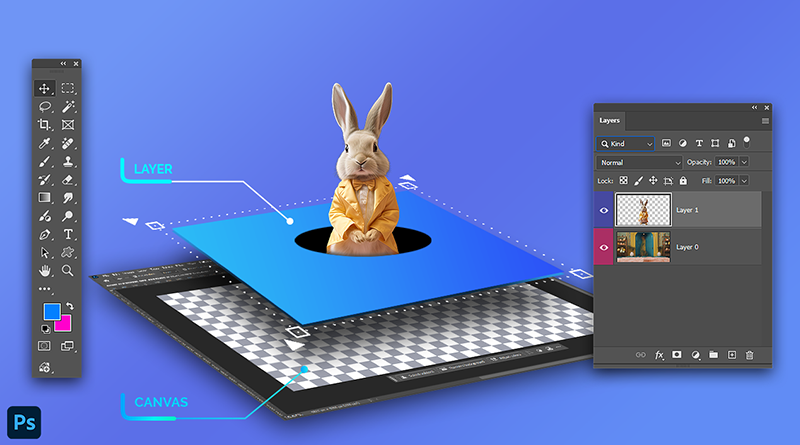
Step 1: Select the Move Tool

First, select the Move Tool from the toolbar.
Once selected, make sure that Show Transform Controls is enabled in the top options bar.
Also ensure that Auto Select is enabled so Photoshop can automatically detect and select layers when you click on them.

Step 2: Select the Layer You Want to Resize

You can select a layer in two different ways:

  • Simply click directly on the image or object on the canvas.

  • Or go to the Layers Panel and click on the layer you want to resize.

Once the layer is selected, you will see transform controls (a bounding box) appear around it.

Step 3: Resize the Layer Proportionally

To resize the layer proportionally:

  • Click, hold, and drag any control point on the bounding box.

  • This allows you to resize the layer smoothly from one direction to another while keeping its proportions intact.

If you decide not to apply the resizing, you can press the Esc key on your keyboard to cancel the transformation.

Step 4: Apply or Undo the Transformation

To apply the resizing changes:

  • Click on the Commit Transform button in the options bar
    or

  • Simply press the Enter key on your keyboard.

If you make a mistake and want to undo the last action, press CTRL + Z.

Step 5: Resize from the Center Anchor Point

To resize the layer from the center anchor point:

  • Hold the Alt key on your keyboard

  • Then drag any control point

This method resizes the layer evenly from the center outward.

Step 6: Stretch the Layer Freely

If you want to stretch the layer freely in any direction:

  • Hold the Shift key

  • Then drag any corner control point

To stretch the layer from only one direction:

  • Hold the Shift key

  • Drag any edge control point

Step 7: Stretch from the Center Anchor Point

To stretch the layer in all directions from the center:

  • Hold Alt + Shift

  • Then drag any corner control point

To stretch the layer from only one direction to the center anchor point:

  • Hold Alt + Shift

  • Drag any edge control point

Step 8: Apply to Any Object or Layer

The same resizing techniques apply to any type of layer, including objects, subjects, text, shapes, and images.

Important Tip for Real-Life Photos

When resizing real-life photos, it’s always a good practice to hold the Alt key before dragging transform controls.
This helps prevent incorrect stretching and keeps the image looking natural and professional.

Watch the full video tutorial on YouTube

Conclusion

That’s it! Now by the end of this tutorial you should have learned the following:

1- how to resize the layer in photoshop

2- how do you resize a layer in photoshop

3- how to scale a layer in photoshop

4- how to shrink a layer in photoshop

Now you are a big master in Photoshop when it comes to resizing layers.

i hope this guide was helpful for you, Thank you for taking your time reading and watching the tutorial , if you have any questions or thoughts regarding the Tutorial please Contact us or leave us a comment below, we will be glade hearing from you.

Please make sure you follow our pages on pinterest and facebook as well subscribe to our youtube channel to get informed each time we post new articles and tutorials.

hdesigntutorials

Leave a Reply

Your email address will not be published. Required fields are marked *